When the task with a recurring date is completed, it automatically shifts to the next date with no extra effort required on your part.
Complete a task with a recurring date
To complete a task with a recurring date, click or tap the circle icon beside the task.
Although the task won't appear in the list of completed tasks in a project, it's logged in Reporting.
Complete an overdue task
When you schedule your task to recur every! day or every day, the date shifts based on the date you complete the task.
If your task was scheduled for yesterday, and you complete it today, the task will not move to today. It will instead shift the date to the following day.
Complete a rescheduled task
When you manually reschedule a recurring task and then complete it, Todoist calculates the next occurrence from the completion date, not the original schedule. Any occurrences between the original due date and the rescheduled date are skipped.
This can be especially surprising with yearly recurring tasks, where completing a task even a few days late can cause the next occurrence to jump an entire year.
Here's an example:
Imagine you have a yearly task due every December 10th.
The December 10, 2025 occurrence is overdue, so you reschedule it to March 2026 and complete it then.
Because you completed it in 2026, Todoist calculates the next occurrence from 2026.
This task is now scheduled for December 10, 2027.
Avoid skipped occurrences with sub-tasks
To avoid skipping occurrences, keep the main recurring task on its original due date and use sub-tasks for any work that needs to happen earlier.
For example, if a yearly task is due December 10th but you need to act on it earlier:
- Keep the main task scheduled for December 10, 2026.
- Add a sub-task with an earlier due date for the prep work.
- Complete the sub-task when the work is done.
- Complete the main task on or around December 10th so the next occurrence lands on December 10, 2027.
Complete a task with a deadline
When you complete a recurring task that has a deadline, the recurring date will keep shifting to its next occurrence, even if you've passed the deadline. The recurrence ends when you specify the end date (for example: ev day until January 31) or when you complete the task forever. The deadline, however, will disappear from the task view after its specified date.
Here's an example:
You created a Todoist task called "Work on home renovations everyday at 10:00 AM {Feb 15}" where the task will recur everyday, is due at 10:00 AM, and the deadline is on February 15th. When you complete this task, it shifts its occurrence, but the deadline isn't removed.
On Feb 15th, the deadline is removed from the task view. The task’s recurring date, however, will carry on until you complete it forever.
Reset sub-tasks when completing a recurring task
When a recurring parent task has sub-tasks, those sub-tasks may reappear each time the parent task is completed. This is controlled by the Reset sub-tasks setting.
If Reset sub-tasks is turned on, Todoist re-adds the same sub-tasks to the next occurrence of the parent task every time you complete it. If it's turned off, the parent task moves to its next occurrence, but the sub-tasks don't come back.
To turn Reset sub-tasks on or off, or to reset sub-tasks for one task only, see Reset a sub-task in Todoist.
Complete a task with a recurring date forever
To complete a task and no longer update the date to the next recurrence:
- Click the task to open the task view.
- Click the three dots icon.
- Click Complete forever.
- Tap the task to open the task view.
- Tap the three dots icon.
- Select Complete Forever.
- Tap the task to open the task view.
- Tap the three dots icon.
- Select Complete forever.
Undo a completed task with a recurring date
When you complete a task with a recurring date, an Undo pop-up will appear in the bottom-left of Todoist. This pop-up lasts for just a few seconds.
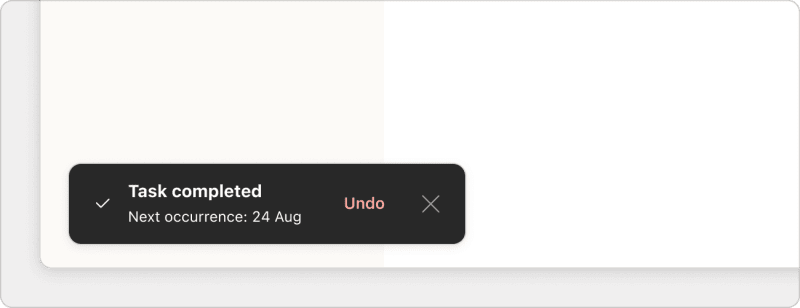
Click Undo if you decide not to complete the task. The recurring date will shift back to whatever it was before you completed it.
If you've completed a task, and the Undo option is no longer visible, you can no longer revert it.
Get help
If you’ve completed a task with a recurring date, but there’s a problem with the recurrence, get in touch with us.