If Todoist isn't the right tool for what you want to achieve, and you don't want to use it again in the future, you may choose to delete your account. Doing so will delete all of your Todoist data, and you will no longer be able to collaborate in shared projects or teams.
Warning
Export your data
If you want a copy of your data for safekeeping, you have choices depending on your needs:
- For a basic copy of your project data, export each of your projects as a CSV file. This will include all active tasks and specific attributes, like labels, dates, priorities, and comments.
- If you don't need all task attributes, use the Export to Google Sheets extension. It excludes deadlines, comments, attachments, and reminders, but it allows you to include your project's completed tasks.
- If you’re on a paid plan, download the latest backup of all your active projects and tasks. Completed tasks and archived projects aren't included.
Leave or delete your team workspace
If you attempt to delete your Todoist account while you're a member of a team workspace, you'll see a prompt to either leave the team workspace or delete it.
If you're the last admin, you won't be able to leave, because a team workspace always needs at least one admin. This often applies if you created a team when you signed up and never added anyone else. You have two ways to continue:
- Promote another member to admin, then leave the team workspace
- Delete the team workspace, which permanently removes all team data, including projects, tasks, comments, and files
Note
Once you've left or deleted the team workspace, you can delete your account.
Delete your account
Once you've removed yourself from any team workspaces, and have stored your data in a safe place, it's time to delete your Todoist account:
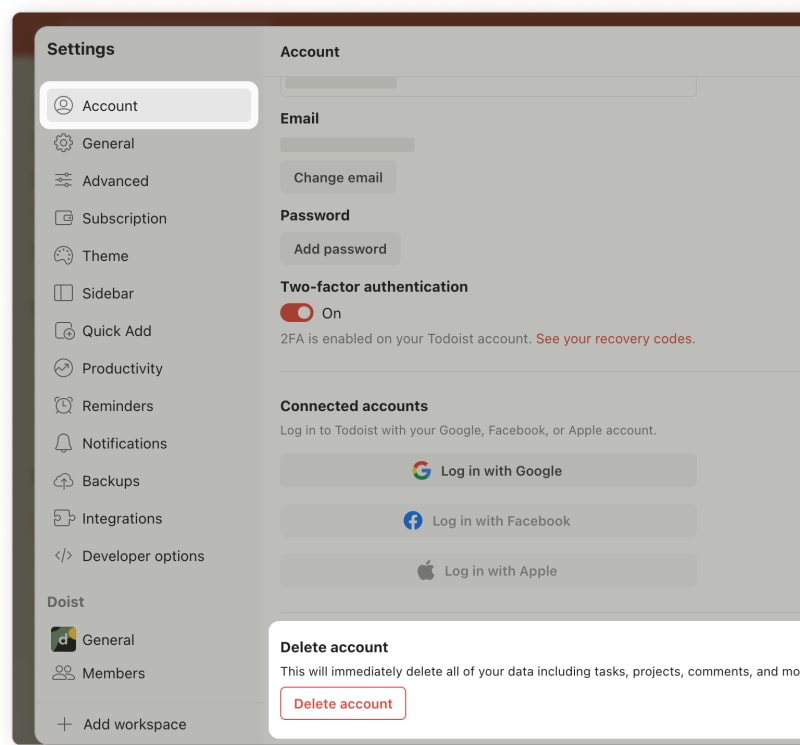
- Log in to Todoist at https://todoist.com. If you're having trouble logging in to your account, reset your account password.
- Click your avatar at the top-left.
- Select Settings. If you logged in using Google or your Apple Account, add a Todoist password first.
- Click Delete account.
- Enter your password.
- Click Delete account again to confirm. If you've set up two-factor authentication for your account, enter your authentication code to complete the process.
After deleting your Todoist account, you'll be redirected to the login page.
If you're the last admin of a team workspace, leave or delete the team workspace in the Todoist web or desktop app first. This isn't possible on iOS.
- Tap on Browse in the bottom-right.
- Tap the gear icon in the top-right.
- Tap Account. If you logged in using Google or your Apple Account, add a Todoist password first.
- Tap Delete Account.
- Tap Continue.
- Enter your password.
- Tap Delete to confirm. If you've set up two-factor authentication for your account, enter your authentication code to complete the process.
After deleting your Todoist account, you'll be redirected to the login page.
If you're the last admin of a team workspace, leave or delete the team workspace in the Todoist web or desktop app first. This isn't possible on Android.
- Tap on Browse at the bottom-right.
- Tap the gear icon at the top-right.
- Select Account. If you logged in using Google or your Apple Account, add a Todoist password first.
- Tap Delete Account.
- Enter your password.
- Tap Delete to confirm. If you've set up two-factor authentication for your account, enter your authentication code to complete the process.
After deleting your Todoist account, you'll be redirected to the login page.
Request account deletion if you can’t log in
Every step above starts with logging in to your account. If you can’t log in, get in touch with us to request account deletion, and tell us which of these applies:
- You’ve lost access to the email address on the account and can’t receive the password reset email
- Someone else used your email address to create a Todoist account that you didn’t sign up for
We’ll take care of it.
Cancel any paid subscriptions
If you've purchased a paid plan through direct billing, it will cancel automatically after deleting the Todoist account.
If you paid for Todoist through an in-app purchase with Apple or Google, it won't cancel automatically and you may be charged for the renewal. Learn how to cancel the subscription in the App Store or Google Play store.

Evert · Head of Customer Experience
Remove a Todoist calendar feed after deleting your account
If you previously subscribed to a Todoist calendar feed, deleting your account won’t remove it from your calendar app. You’ll need to remove the calendar from your calendar app separately.
To remove it from Apple Calendar on iPhone or iPad:
- Open the Settings app on your iPhone or iPad.
- Tap Calendar.
- Tap Accounts.
- Tap the Todoist entry.
- Tap Delete Account.
For Google Calendar or Outlook, follow the steps in Remove the Todoist calendar from your calendar app.
Get in touch
If you're having trouble deleting your Todoist account, get in touch with us.