Templates in Todoist allow you to quickly recreate your most successful workflows without starting from scratch every time. Browse through our vast library of pre-made templates, or create your own templates that best fit your unique workflow. Whether you’re managing a weekly project review or planning a social media campaign, using templates helps you save time and reduce mental effort.
You can use templates to:
- Replicate successful projects like product launches or event planning
- Track recurring habits such as reviews or monthly fitness goals
- Standardize team processes by sharing templates for onboarding or meeting agendas
- Organize personal lists for travel packing or grocery shopping
Use a pre-made template
Use any of the ready-made templates to kick-start your next project. Here’s how to grab a template to use in a Todoist project:
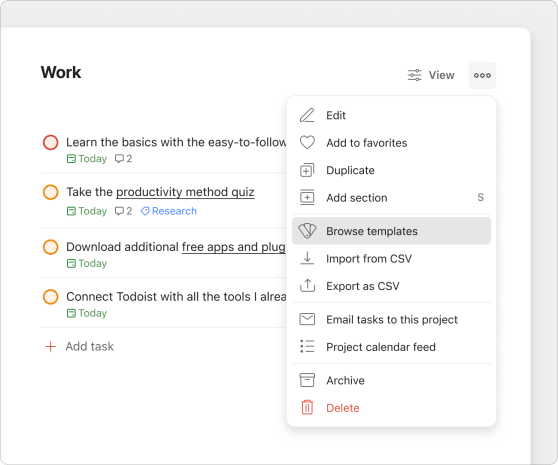
To create a project in My Projects from a pre-made template:
- Click the Add icon next to My Projects in the sidebar.
- Click Browse templates.
- Use the search bar to find a specific template, or scroll down to browse template categories.
- Open the template.
- Click Import to project.
To create a project in a team workspace from a pre-made template:
- Click the Add icon next to a folder or project inside your team workspace.
- Click Browse templates.
- Use the search bar to find a specific template, or scroll down to browse template categories.
- Open the template.
- Click Copy setup. The new project will be added to that team workspace.
For My Projects:
- Tap Browse at the bottom-right.
- Select Browse Templates.
- Tap the search bar to find a template, or swipe left to browse the different template categories.
- Open the template.
- Tap Copy to My Projects.
For a team workspace:
- Tap the team name.
- Tap the Add icon.
- Select Browse Templates.
- Tap the search bar to find a template, or swipe left to browse the different template categories.
- Open the template.
- Tap Copy. The button will show the team name, and the new project will be added to that team workspace.

For My Projects:
- Tap Browse at the bottom-right.
- Select Browse Templates.
- Tap the search bar to find a template, or swipe left to browse the different template categories.
- Open the template.
- Tap Copy to My Projects.
For a team workspace:
- Tap the team name.
- Tap the Add icon.
- Select Browse Templates.
- Tap the search bar to find a template, or swipe left to browse the different template categories.
- Open the template.
- Tap Copy. The button will show the team name, and the new project will be added to that team workspace.
Create a custom template
After adding all the necessary tasks, here’s how to create a project template and add it to the template gallery:
- Open a project from the sidebar.
- Click the three dots icon at the top-right.
- Select Save as template. You’ll see the template gallery.
- Select your preferred template color.
- Give your template a description.
- Click Save.
Your template is saved in the My templates section of the template gallery.
Quick tip
- Tap Browse at the bottom-right.
- Select the three dots icon at the top-right.
- Select a project.
- Select Save as Template. You’ll see a preview of your template.
- Tap Next and add a template description. You can change the template color.
- Tap Save.
Your template is saved in the My templates section of the template gallery.
Quick tip
- Tap Browse at the bottom-right.
- Select a project.
- Select the three dots icon at the top-right.
- Select Save as Template. You’ll see a preview of your template.
- Tap Next and add a template description. You can change the template color.
- Tap Save.
Your template is saved in the My templates section of the template gallery.
Quick tip
The description you add when saving a template is the template gallery description, which appears when browsing templates. It’s separate from the project and section descriptions. Any project description or section descriptions you’ve added to the project are also saved with the template and applied automatically when someone imports it.
Upload a template
If you previously saved your templates as CSV files, you can upload them to the template gallery and have them ready to use wherever you use Todoist. Make sure to check if your CSV file matches the supported format.
- Open the templates gallery.
- Click Upload template.
- Select the CSV file from your device or drag the file to import your template.
- Change the template name, color, and description.
- Click Save.
Your template is now saved in the templates gallery.
You can only upload CSV files from a computer. Once uploaded, you'll be able to find and use them in the template gallery on any device.
Edit a template
Projects change over time, so you’ll want your template to reflect these changes.
Import the template, and make the necessary changes to your project. Then, create a new template out of your project with a different project color and name. This helps to distinguish it from the older version. After recreating your template, delete the older one.
Use a custom template
Ready to start using a custom template in a project? Here’s how to apply and use a custom template in Todoist:
To create a new project in My Projects from a custom template:
- Click the Add icon next to My Projects in the sidebar.
- Click Browse templates.
- Open the template you want to use from the My templates section.
- Click Import to project.
To create a new project in a team workspace from a custom template:
- Click the Add icon next to a folder or project inside your team workspace.
- Click Browse templates.
- Open the template you want to use from the My templates section.
- Click Copy setup. The new project will be added to that team workspace.
Or, from within an existing project in a team workspace:
- Open a project in your team workspace.
- Click the three dots icon next to the project name.
- Select Apply my template.
- Select Browse my templates.
- Open the template you want to use from the My templates list.
- Click Import to project.
Note
For My Projects:
- Tap Browse at the bottom-right.
- Select Browse Templates.
- Open the template in the My Project Templates section.
- Tap Copy to My Projects.
For a team workspace:
- Tap the team name.
- Tap the Add icon.
- Select Browse Templates.
- Open the template in the My Project Templates section.
- Tap Copy. The button will show the team name, and the new project will be added to that team workspace.
For an existing project:
- Tap Browse at the bottom-right.
- Open a project from the list.
- Tap the three dots icon in the top-right.
- Select Apply my template.
- Tap Browse my templates to view all your templates in the gallery.
- Select your template.
- Tap Import to project.
- Tap Confirm.
Note
For My Projects:
- Tap Browse at the bottom-right.
- Select Browse Templates.
- Open the template in the My Project Templates section.
- Tap Copy to My Projects.
For a team workspace:
- Tap the team name.
- Tap the Add icon.
- Select Browse Templates.
- Open the template in the My Project Templates section.
- Tap Copy. The button will show the team name, and the new project will be added to that team workspace.
For an existing project:
- Tap Browse at the bottom-right.
- Open a project from the list.
- Tap the three dots icon at the top-right.
- Tap Browse my templates to view all your templates in the gallery.
- Select your template.
- Tap Import to project.
- Tap Confirm.
Note
Delete a template
Need to declutter your template gallery? Here’s how to delete a template that no longer serves a purpose:
- Click the Add icon next to My Projects in the sidebar.
- Click Browse templates.
- Open a template in the My templates section.
- Click Delete. You'll see a warning pop-up.
- Click Delete again to confirm.
- Tap Browse at the bottom-right.
- Select Browse Templates.
- Tap a template in the My Project Templates section.
- Tap the three dots icon at the top-right.
- Tap Delete Template. You’ll see a warning pop-up.
- Tap Delete Template to confirm.
- Tap the Add icon beside the team name.
- Select Browse templates.
- Tap a template in the My templates section.
- Tap the three dots icon at the top-right.
- Tap Delete template. You’ll see a warning pop-up.
- Tap DELETE to confirm.
Get the most out of templates
Templates are huge time-savers when you find yourself frequently recreating the same project. Here are best practices to keep in mind when using templates in Todoist:
Everything’s in the name
Use consistent naming conventions to make templates easier to find and understand at a glance. For example, if a set of templates are for the Marketing team, you can prepend each template with the letters MK.
Provide context through task descriptions and comments
Rather than working with a blank slate, add descriptions and comments to tasks from the get-go to provide context about the template’s purpose. For example, a new employee will import your department’s onboarding template, and have all the instructions they need to get started right away.
Start right away with task templates
Task templates are made up of just the core tasks and sub-tasks. Create a custom template with just the essentials, then click the Apply my template option from the project menu to add the tasks to the project right away.
Update your templates regularly
Keep planning as frictionless as possible by updating your templates whenever significant changes happen within the project. If you notice that two or more tasks get deleted or you add just as many tasks after applying the template, save this as a new template and delete the older one.
Share your handcrafted templates with your team
If you created a Todoist team, a well-crafted template can save significant planning time and effort, allowing you to get that project up and running in minutes.
To share it with your team members, open your template and click the share icon at the top-right of the screen. Give access to everyone in the team, and click the Copy link button to share the template with them.
Get started
Ready to save yourself hours from recreating the same projects? The template gallery is the best place to start looking for templates that can serve as the foundation for many of your recurring projects. If you’re having trouble adding, editing, or deleting templates in Todoist, get in touch with us.