If you're looking to optimize the workflow between Todoist and Google Chrome, this Todoist extension is for you!
Note
Installation
When you're ready, follow these steps to Install the Todoist extension in your browser.
Use the extension
To get a quick look at Todoist from your browser, click the Todoist icon in your extensions bar in the top right. A compact view of Todoist will appear below the address bar.
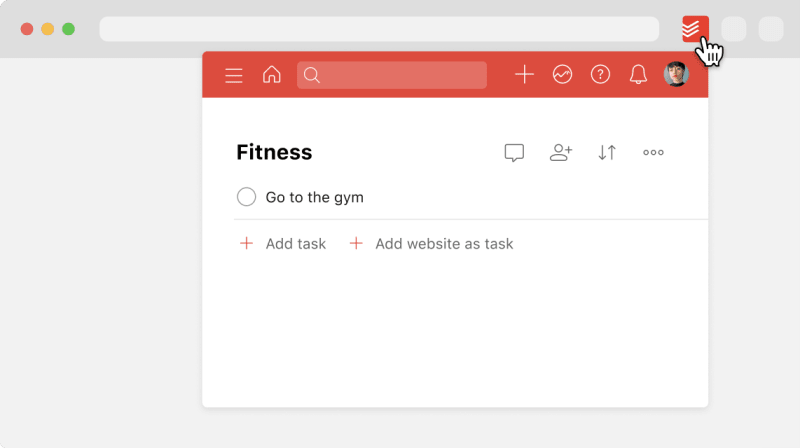
The compact view is a great way to save time. You can access any of Todoist's features without leaving the current web page.
With the Chrome extension installed, right-click any website to quickly add it as a link in a Todoist task:
- Go to the website you'd like to add as a task.
- Right-click anywhere on the page and select Add to Todoist. A pop-up window opens where you can add task details.
- Make additional changes, such as selecting the task project, add a label, assign a date and time, and more.
- Click Add task to save the task.
You can add the current website as a task directly from your task list in the extension:
- Click the Todoist icon in your extensions bar in the top right.
- Click Add website as task at the end of your task list. The page title and URL are added as the task name.
- Click Add task to save the task.
Spot a quote or paragraph that you want to save to Todoist? Here's how to capture it as a task:
- Open the website where you found the text to capture as a task.
- Select or highlight the text.
- Right-click the selected text and choose Add to Todoist. This opens Quick Add in a pop-up window.
- Make additional changes, such as selecting the task project, add a label, assign a date and time, and more.
- Click Add task to save the task.
Stay productive in Todoist without needing to lift a finger to click. Here's how to find and set up keyboard shortcuts for Todoist for Chrome.
- Open Google Chrome.
- Right-click the Todoist icon at the top-right.
- Select Manage Extensions.
- Click the three horizontal lines icon in the top-left corner.
- Select Keyboard shortcuts. You'll now see a list of all of your extensions that have implemented keyboard shortcuts.
- Find Todoist for Chrome in the list.
- Use your preferred keyboard shortcut.
You can now set two keyboard shortcuts: Activate the extension and Add to Todoist.
If you want any new task to automatically be scheduled to today, set it as the default task date:
- Open Google Chrome.
- Click the Todoist icon at the top-right.
- Select Manage Extensions.
- Click Extension options.
- Find the Set default due date for 'Today' option.
- Click the checkbox next to it.
With the Chrome extension, you can turn emails into Todoist tasks or open these same emails through Todoist. Find the steps to do so here.
Troubleshoot the extension
If you run into any errors or technical issues while using the Todoist for Chrome extension, check this section for the troubleshooting steps.
Todoist can't access Gmail due to cookie settings
If you see a TypeError: Cannot set properties of undefined (setting 'name') error when trying to create a task from Gmail, the extension can't access Gmail properly due to Chrome's cookie settings.
To resolve this, add Todoist to the allowed sites list with these steps:
- Open Google Chrome and go to Settings > Privacy and security > Third-party cookies.
- Scroll to the bottom and click Add under the allowed sites list.
- Enter
[*.]todoist.comand click Add. - Click Add again, enter
mail.google.com, and click Add. - Restart Google Chrome.
- Sign in at app.todoist.com and try creating a task from Gmail again.
Get in touch
If you're having trouble using Google Chrome with Todoist, get in touch with us.