Insights automatically shows how your projects are doing based on your actual work, with no status meetings or manual updates needed. It’s available on the Pro and Business plans, giving you a clear view of how much work is done and what’s left.
See how your projects are progressing without juggling spreadsheets or chasing down updates. You have full visibility into what’s moving forward, what needs attention, and where to focus next.
How to access Insights
On Pro, Insights is available for your projects. On Business, admins and members can view insights, while guests don’t have access.
Warning
- Open a project.
- Tap Insights.
Note
- Open a project.
- Tap the three dots icon in the top-right corner.
- Tap Insights.
Note
What you'll see in Insights
Insights is made up of widgets. Each widget highlights a different aspect of your project: Health, At risk, Progress, Completed, and Assigned. The Health and Assigned widgets are available on the Business plan.
Health status
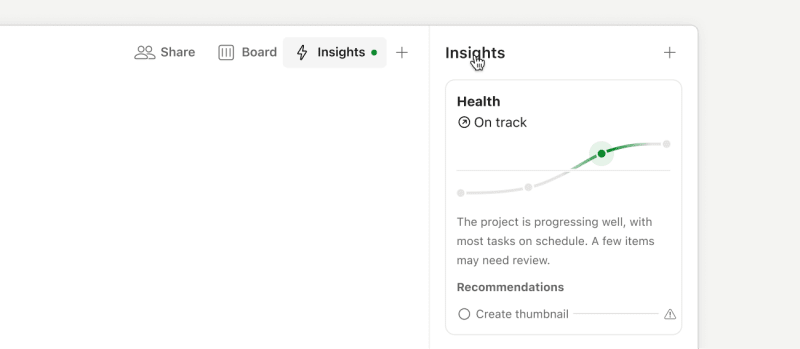
Available on the Business plan, project health shows how your project is doing at a glance – no manual updates needed. Todoist calculates it automatically based on a few signals:
- Task completions, overdue items, and overall momentum
- How often tasks are postponed
- Your project description, if you’ve added one
- Your section descriptions, if you’ve added them
You’ll see one of the following statuses:
- Excellent – Your team is ahead of schedule and making steady progress.
- On Track – Work is moving forward smoothly with no major delays.
- At Risk – Some tasks are stalled or approaching their deadlines.
- Critical – Multiple overdue tasks or significant delays are slowing momentum.
- Pending – Todoist is still collecting enough activity data to generate a health signal.
Along with the status, you’ll see a short explanation of why the project landed there.
Project health updates automatically once a day as your team works. You can also refresh it manually by clicking on ”Updated ... ago”.
At risk
The At risk widget highlights potential warning signs within the project. It surfaces indicators that suggest progress may be slowing down or that the project could fall behind.
Progress

See how much of your project is complete at a glance. The progress bar fills as tasks get checked off.
Progress is calculated based on the total number of tasks in your project. As tasks are completed, the progress bar fills up to show what percentage of the work is done. You’ll also see a breakdown of completed tasks versus open tasks.
Todoist updates progress in real time. If you’ve added many new tasks recently, the progress bar might look stuck or even move backward despite you completing work. This is normal – it just means your project scope has grown.
Completed tasks
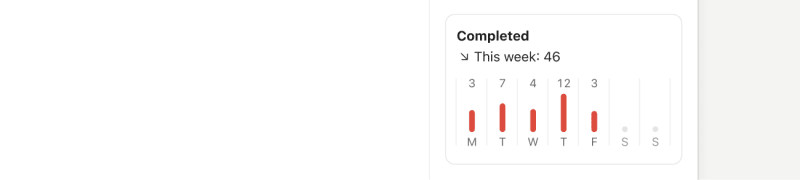
Track your wins over time with a view of recently completed tasks. It’s surprisingly motivating to see everything you’ve already accomplished.
Assigned tasks
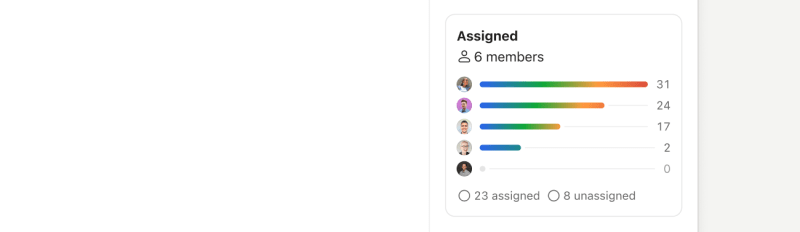
Available on the Business plan, the Assigned widget lets you see who’s working on what and spot if anyone’s workload is getting heavy.
You can:
- See how many active tasks each person has
- Identify people with no assigned tasks
- Understand workload balance at a glance
Note
View Insights across all projects
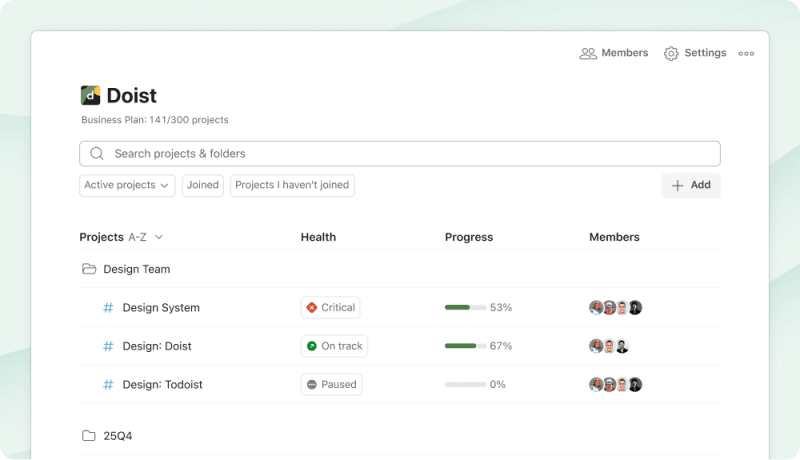
The workspace overview shows how your projects are doing in one place. When something catches your attention, click through to see the full insights for that project.
Where you’ll find it depends on your plan:
- Pro: Click My Projects in the sidebar to see Completed, Open, and Progress for your projects.
- Business: Click your team name in the sidebar to see full health and progress indicators for all your team projects.

Sergio · Customer Experience Specialist
Best practices for Insights
Insights work best when your projects have a strong framework in place:
Establish milestones and goals
Define project milestones and goals, and add these as Todoist tasks with high priority and clear deadlines. Another approach is to create sections, label them as milestones, and add related tasks under each milestone.
Set realistic dates and deadlines
Add reasonable dates and deadlines to tasks, so everyone on the team knows when work needs to be done.
Complete tasks regularly
The more consistently your team checks off completed work, the more accurate your progress tracking becomes.
Assign tasks right away
If you’re collaborating with others, assigning tasks helps everyone see who’s responsible for what and prevents work from falling through the cracks. If you’ve set goals or milestone tasks in the project, assign these to the people responsible for the team’s progress.
Prioritize urgent tasks
Increase the priority of your most urgent tasks, so they get the attention they need. In a large project, you can sort or group tasks by priority for a clearer view of what’s most critical.
Collaborate with context and clarity
Define the scope of the work directly within the task description or by adding a comment. Task comments are a great way to keep communication clear and centralized; you can easily share files and tag teammates directly.
This setup helps you track key outcomes, align your team, and identify blockers early without adding complexity.
Get in touch
If you have questions or feedback about Insights, fill out this form to send your feedback directly to the product team. If you’re having trouble with a specific insight, get in touch with us.