You’ve just invited your team members to Todoist, and you’re ready to make progress on those long-standing project milestones. Learn and adopt these best practices to manage team tasks and collaboration in Todoist.
Kickstart teamwork with a few new projects
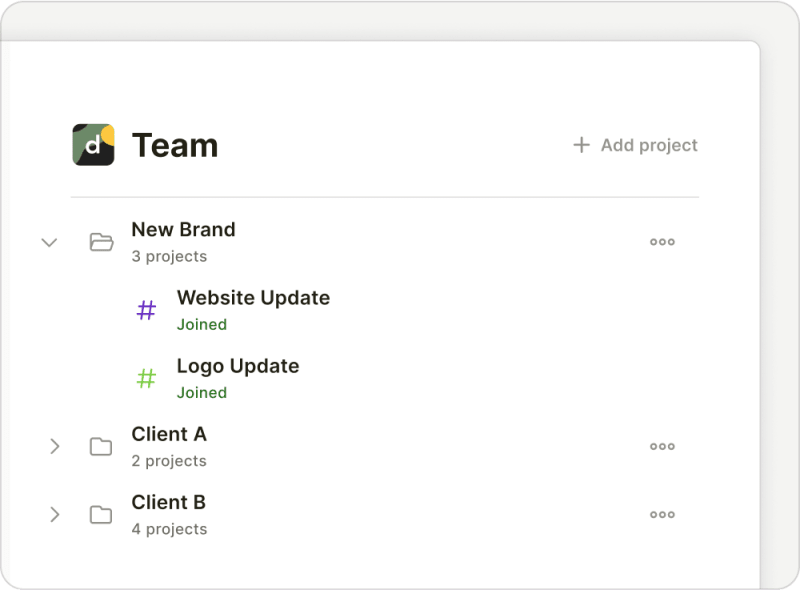
Choose one or two high-priority projects your team’s working on, and add these projects in your shared workspace. Start adding relevant tasks that come to mind, so your team members know what to work on soon as they open Todoist.
Quick tip
Assign tasks to team members
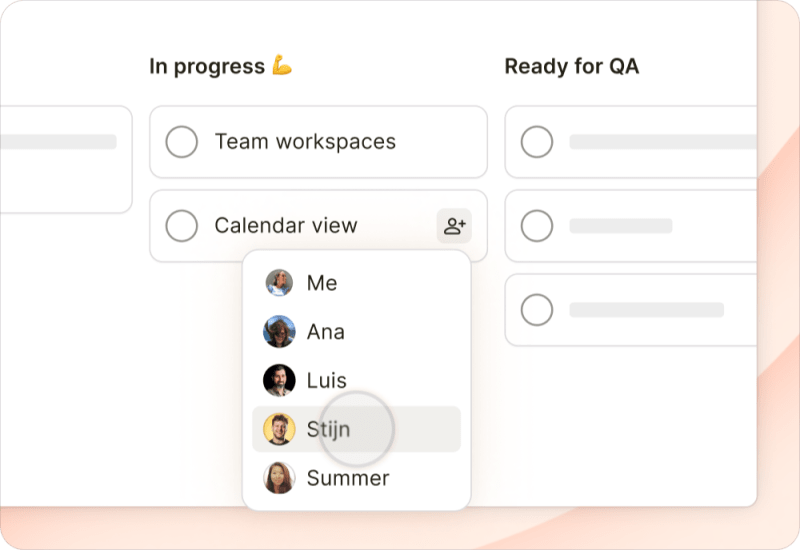
Assign every single task in a project to a team member, so they know what they’re responsible for. In Todoist, you can only assign one person to a task, so there’s no doubt about who’s responsible for doing what.
Want to assign multiple people to the same task? Here are a couple of options:
- If there are multiple steps to complete a task, break it down by adding sub-tasks. Then, assign each sub-task to a team member.
- If several people need to complete the same task, duplicate the task and assign each copy to the responsible member.
- Notify the relevant people in a task comment, so they’re fully aware of the status and progress of the work.
Sort or group tasks by Assignee
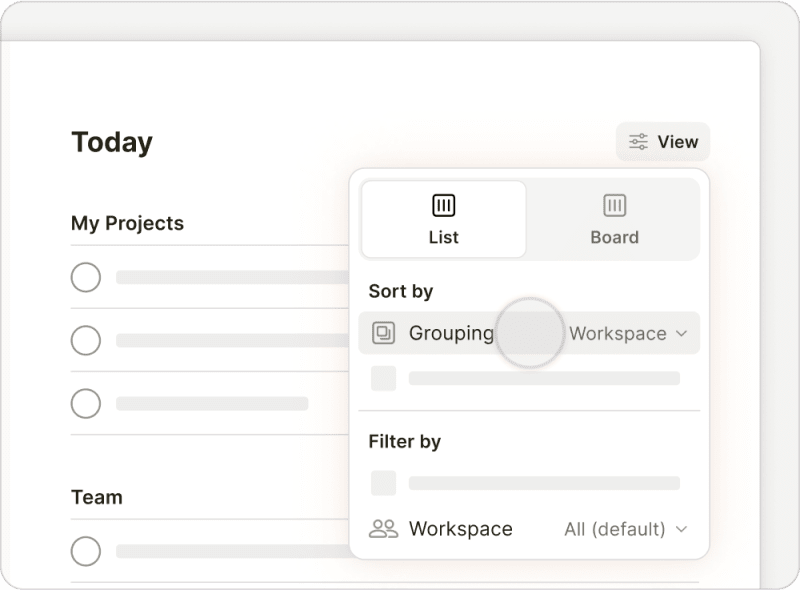
To get a clear picture of everyone’s workload, click Display at the top-right of the project and use either sorting or grouping options to see each person’s assignments.
Filter by assignee in team projects and custom filter views
In any team project you’re collaborating on, or in any custom filter view that contains team tasks, filter for tasks that are unassigned, assigned to you, or assigned to specific people:
- Click Display at the top-right.
- Click Assignee in the Filter by section. Then, select:
- No one to see tasks that aren’t assigned.
- Only me to see tasks assigned to you.
- Selected assignees to see tasks assigned to specific people. An Assignees menu will appear.
- Click Choose assignees.
- Select the names of people to see their assigned tasks.
- Tap the three dots icon at the top-right.
- Tap Display.
- Tap Assignee in the Filter section. Then, select:
- Anyone to see tasks assigned to anyone on the team.
- No one to see tasks that aren’t assigned.
- Only me to see tasks assigned to you.
- Select assignees to see tasks assigned to specific people.
- Tap Select assignees.
- Tick the boxes next to people’s names to see their assigned tasks.
- Tap Done.
- Tap back to Display.
- Tap Done to confirm.
- Tap the three dots icon at the top-right.
- Tap Display.
- Tap Assignee in the Filtered By section. Then, select:
- No one to see tasks that aren’t assigned.
- Only me to see tasks assigned to you.
- Selected assignees to see tasks assigned to specific people.
- Tap Selected assignees.
- Tick the boxes next to people’s names to see their assigned tasks.
- Tap OK.
- Tap Save to confirm.
Create team-specific filters
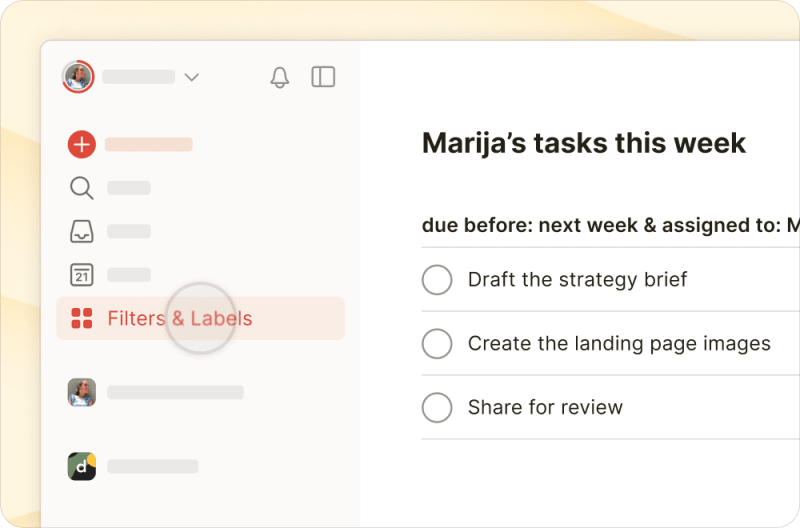
These filter recipes help you see what’s been assigned, giving you a clear picture of who’s working on what:
| Filter query | What it shows | Helpful for… |
|---|---|---|
| assigned to: [Member name] | All tasks assigned to a specific teammate | Seeing one person’s workload across all projects |
| assigned to: others or !assigned to: me | All tasks assigned to anyone except you | Seeing what’s been delegated across the team |
| Workspace: [Team name] & assigned to: me & next 7 days | All tasks assigned to you in your team due this week | Planning your collaborative work for the week |
| Workspace: [Team name] & assigned by: me | All tasks you’ve assigned to anyone else on your team | Keeping track of progress on the things you’ve delegated |
| Workspace: [Team name] & overdue | All overdue tasks in your team | Spotting blockers and adjusting plans early |
| Workspace: [Team name] & assigned to: others & next 7 days | Tasks due this week for everyone else on the team | Spotting where the team has bandwidth to help |
| assigned to: [Member name] & due before: +4 weeks | A single teammate’s workload for the next four weeks | Checking a teammate’s load before assigning more |
| ##[Folder name] & assigned to: me & due before: [date] | Your own tasks within a team folder by a given date | Focusing on your work in a team folder |
Filter your team’s tasks
Let's say you're working with a team called Doist, and you've got a task that needs to be taken care of. You'll want to know who may have the bandwidth to help out. You can try out this filter to see what’s on everybody’s plate in the next 7 days:
- Select Filters & Labels in the sidebar.
- Click the Add icon next to Filters.
- In the Name field, add a self-explanatory filter name. For example,
Doist's upcoming tasks. In the Query field, add the filter query:
Workspace: Doist & assigned to: others & next 7 days- Click Add to save your filter.
- Tap Browse in the bottom-right.
- Tap Filters & Labels.
- Tap the Add icon next to Filters.
- In the Name your filter field, add a self-explanatory filter name. For example,
Doist's upcoming tasks. In the Query field, add the filter query:
Workspace: Doist & assigned to: others & next 7 days- Tap Done at the top-right to save your new filter.
- Tap Browse at the bottom-right.
- Tap Filters & Labels.
- Tap the Add icon next to Filters.
- In the Name field, add a self-explanatory filter name. For example,
Doist's upcoming tasks. In the Query field, add the filter query:
Workspace: Doist & assigned to: others & next 7 days- Tap the checkmark icon at the top-right to save your filter.
Quick tip
Filter a teammate’s tasks
Let’s say your teammate, Evert, is due to start a new project in the coming weeks. You’ll want to know what his workload is like before assigning more tasks.
Let’s check what Evert has assigned to him for the next 4 weeks by creating a filter:
- Select Filters & Labels in the sidebar.
- Click the Add icon next to Filters.
- In the Name field, add a self-explanatory filter name. For example,
Evert's upcoming tasks. In the Query field, add the filter query:
assigned to:Evert & due before: +4 weeks- Click Add to save your filter.
- Tap Browse at the bottom-right.
- Tap Filters & Labels.
- Tap the Add icon next to Filters.
- In the Name your filter field, add a self-explanatory filter name. For example,
Evert's upcoming tasks. In the Query field, add the filter query:
assigned to:Evert & due before: +4 weeks- In the top-right, tap Done to save your new filter.
- Tap on Browse at the bottom-right.
- Tap Filters & Labels.
- Tap the Add icon next to Filters.
- In the Name field, add a self-explanatory filter name. For example,
Evert's upcoming tasks. In the Query field, add the filter query:
assigned to:Evert & due before: +4 weeks- Tap the checkmark icon in the top-right to save your filter.
Filter your tasks
You may also want to set up a custom view for tasks that are assigned to you. Let's say you're a part of the design team, your team keeps all the projects in the Design team folder, and you want to see your tasks that are due before June 5th. To view these tasks, try out setting up this filter:
- Select Filters & Labels in the sidebar.
- Click the Add icon next to Filters.
- In the Name field, add a self-explanatory filter name. For example,
My design tasks before: June 5. In the Query field, add the filter query:
##Design team & assigned to: me & due before: June 5- Click Add to save your filter.
- Tap Browse in the bottom-right.
- Tap Filters & Labels.
- Tap the Add icon next to Filters.
- In the Name your filter field, add a self-explanatory filter name. For example,
My design tasks before: June 5 In the Query field, add the filter query:
##Design team & assigned to: me & due before: June 5- Tap Done at the top-right to save your new filter.
- Tap Browse at the bottom-right.
- Tap Filters & Labels.
- Tap the Add icon next to Filters.
- In the Name field, add a self-explanatory filter name. For example,
My design tasks before June 5. In the Query field, add the filter query:
##Design team & assigned to: me & due before: June 5- Tap the checkmark icon in the top-right to save your filter.

Marija · Customer Experience Specialist
Schedule tasks with dates or deadlines
Schedule dates or deadlines to tasks, so it’s easy to plan and prioritize work for the team. In the task name, write a date in natural language (for example: Write team update tomorrow) and the smart Quick Add will recognize, highlight, and add the date when you save the task. Natural language dates can also be as complex as every 3rd Thursday starting Aug 5 and ending April 10.
Quick tip
If you’re tracking milestones, use deadlines to set when the task is due. This also reduces the risks of bottlenecks in a project.
For example, if you're adding a task to submit the monthly finance report, select the date you intend to start working on the draft. Then, set a deadline for when the report is due for submission.
Add context in task descriptions
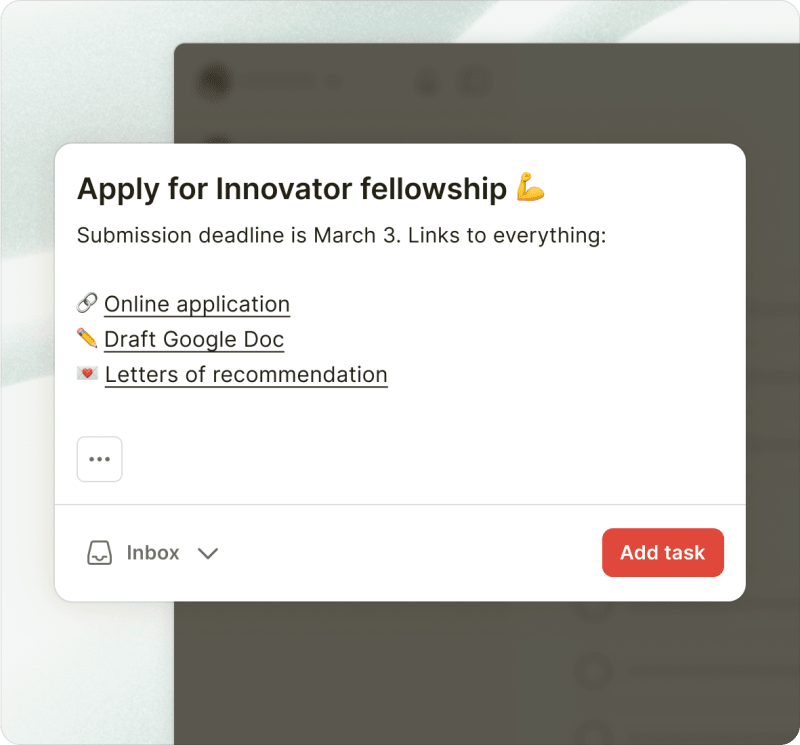
Use task descriptions to share links to documents and as many relevant details as you can. Instead of wasting time hunting down information, your teammates will be able to just get started. Descriptions stay organized at the top of your task view and are visible underneath the task in the project list.
Ask questions, share files, or share updates in task comments
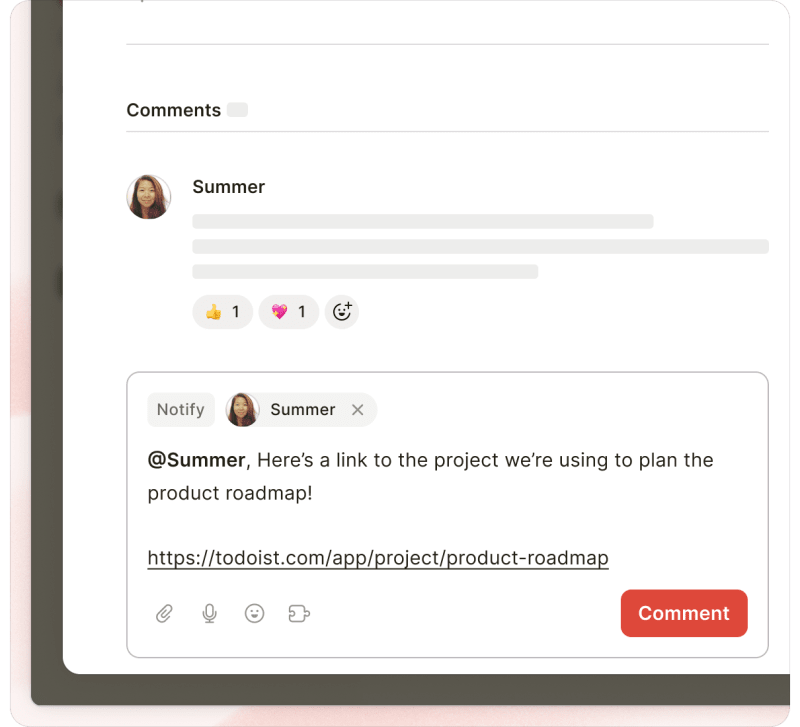
Ask questions, attach important files, and provide status updates right inside your tasks as comments. Actionable information stays in context with the task itself, instead of having that information spread out across external messaging apps.
Don’t forget to notify your teammates to make sure they’re informed about a new comment or a file they may need to get work done.
Check and measure your team’s progress
Use Reporting to see all activity in a project, from changed dates to new comments added to tasks. This wealth of information helps you make informed decisions about what to adjust, remove, or focus on, so the project reaches the finish line without missing a deadline.
Get in touch
No two teams use Todoist in exactly the same way. This guide is just a starting point! Set up your team in Todoist, and start experimenting with these workflows to make Todoist work for you.
If you’re having trouble using any of these features to manage team tasks, such as assigning tasks or creating custom filters, get in touch with us. We’re happy to help!